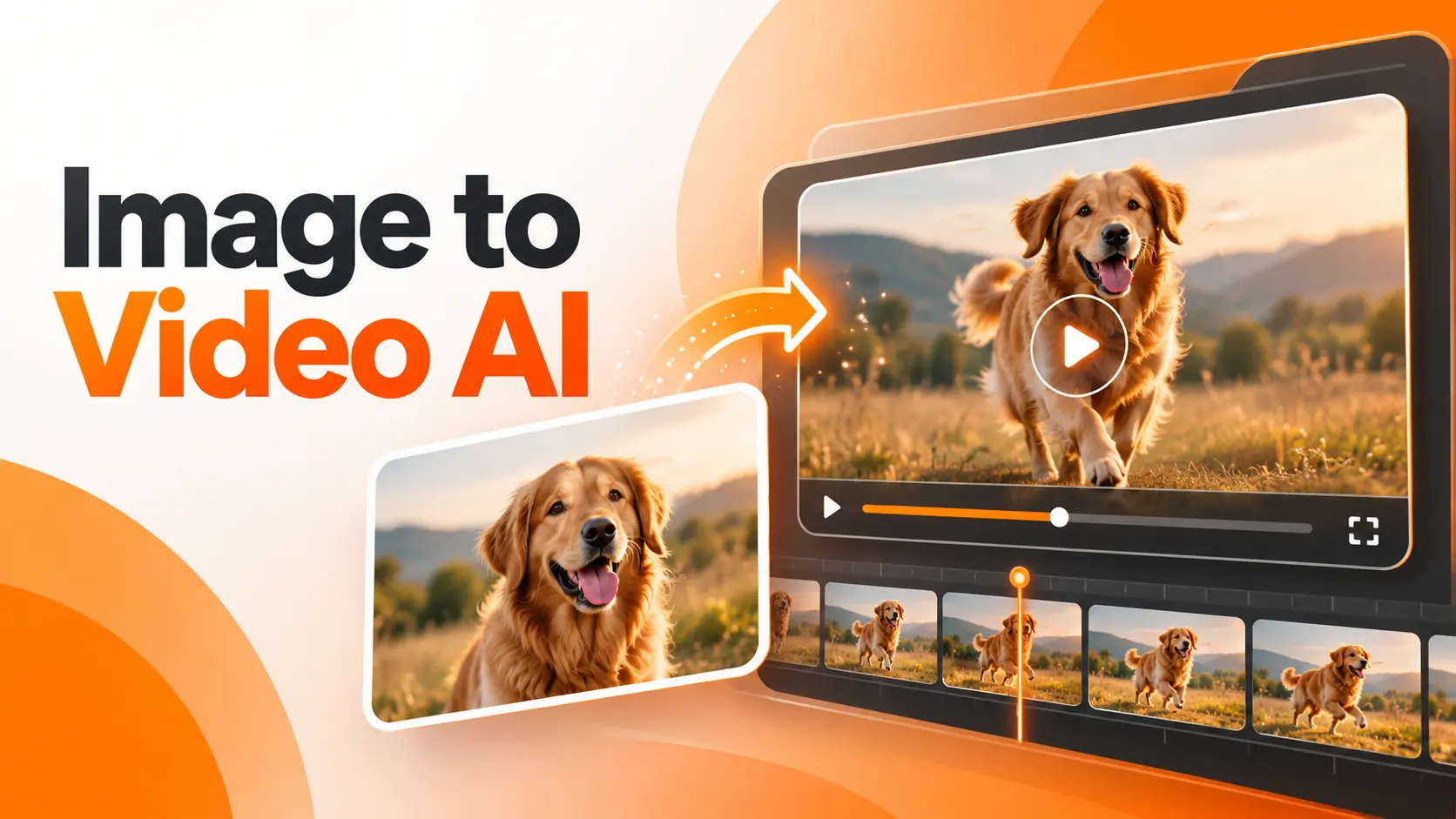
Image to Video AI transforms a still photo into a moving video using generative artificial intelligence. Upload an image, describe the movement you want, and a video model generates a clip based on the original composition. You can animate product photography, landscapes, portraits, illustrations, and other visual assets without filming a new scene.
For creators and startups, this is one of the most accessible applications of AI Video Generation. The image establishes what the scene looks like, while the model generates movement. The challenge is choosing a suitable tool and controlling that movement without losing the details that made the original image useful.
How to Turn an Image into a Video with AI
Turning a picture into a video takes five main steps. The process is similar across Runway, Kling AI, Adobe Firefly, and other image to video generators, although the available controls differ between platforms.
1. Choose an image to animate
Start with a clear image that contains the subject and composition you want to preserve. For product videos, use an approved photograph with visible details and suitable lighting. For portraits, make sure facial features are clear and unobstructed.
The model uses the image as visual guidance, so its quality directly affects the starting point of the generated video.
2. Upload the image to a video generator
Open an image to video tool and select its image generation workflow. Upload the photograph or illustration you want to animate.
Some platforms use the uploaded image as the first frame. Others also support additional references or an ending frame to guide the final composition.
3. Describe the movement
Enter a short instruction explaining what should happen in the video.
For a product photograph, I would start with:
"The camera slowly moves closer to the product while soft reflections shift across its surface. The product remains stationary."
The instruction defines camera movement and environmental changes without asking the model to redesign the product.
4. Select the video settings
Choose the available duration, aspect ratio, resolution, and generation model.
A vertical clip is suitable for mobile social content, while a horizontal clip works for a website presentation or conventional video player.
The selected settings determine how the generated material fits into the final production.
5. Generate, review, and export
Generate the video and inspect the result before downloading it.
Check the appearance of the original subject, movement quality, lighting consistency, and any changes to important details.
If the product changes shape or the motion becomes unnatural, revise the movement instructions or input image before generating another version.
This process gives you more control than repeatedly generating clips without identifying what needs improvement.
Best Image to Video AI Tools
The best image to video AI generator depends on what you want to animate. Creating movement from a product photo requires different controls from animating an illustration or developing a cinematic scene.
For this comparison, I would focus on five established tools rather than treating every video generator as interchangeable.
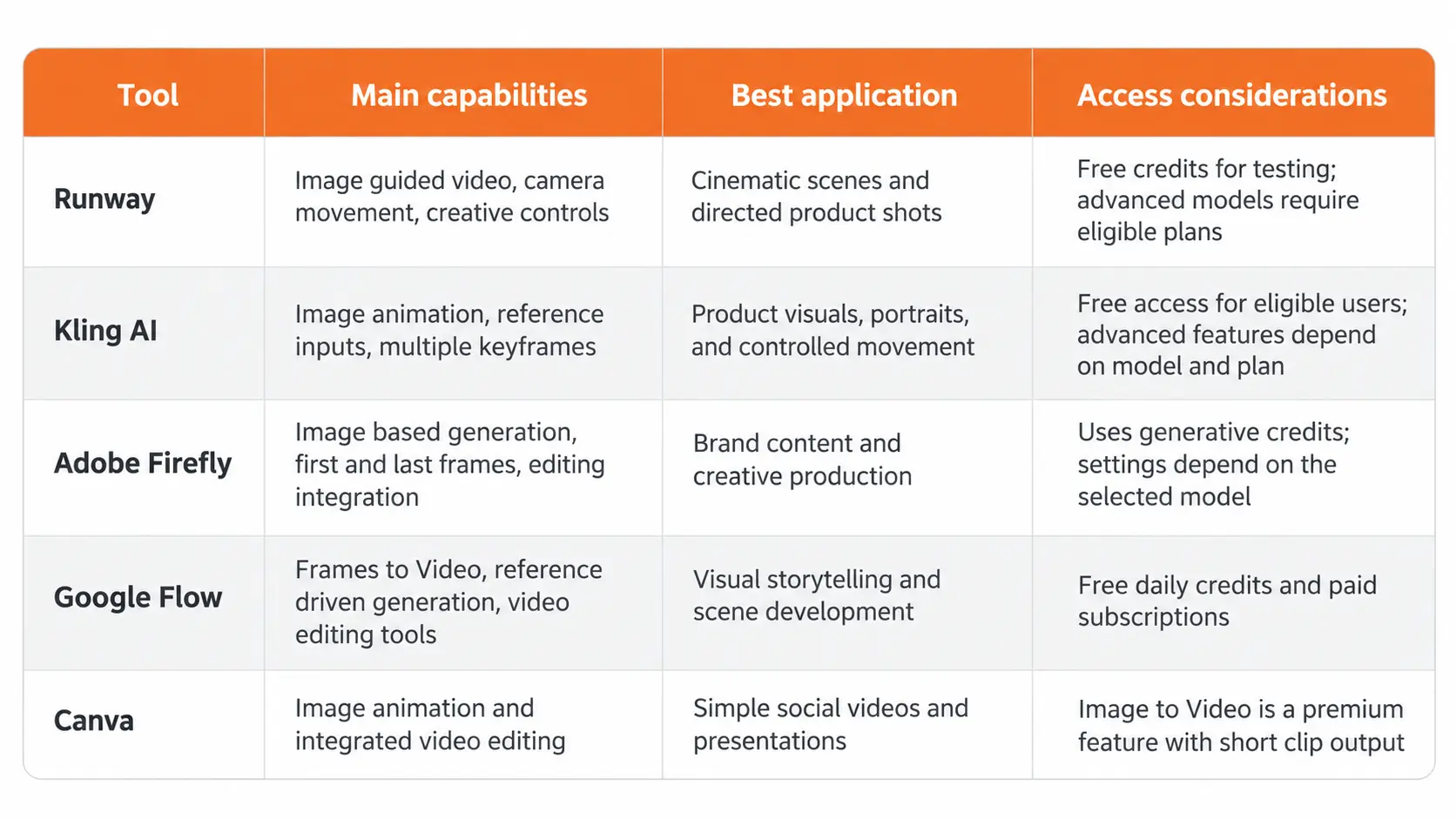
Runway is a strong option when the camera movement and creative direction matter. Its image to video workflow uses the input image to establish the scene and the text prompt to guide motion.
Kling AI provides image based generation with support for keyframes and reference assets. It is worth considering when a project needs control over the appearance of a subject or the progression of a shot.
Adobe Firefly fits teams that already create and edit branded visual assets. Its video generation workflow supports image inputs and selected models offer first and last frame controls.
Google Flow provides several approaches to visual generation, including creating video from frames and combining reference assets. Its workflow is useful for exploring scenes and building visual sequences.
Canva offers a simpler route for turning a still image into a short animated clip inside an existing design. Its Image to Video feature focuses on brief animations rather than complex cinematic production.
For a startup creating product advertisements, I would begin with the tool that gives the most appropriate control over the original product image. A longer feature list is less valuable than a generated clip that preserves the details customers need to recognize.
Free Image to Video AI Generators
Free image to video AI tools are useful for evaluating motion quality before paying for a subscription.
However, free access does not mean every model, export resolution, or commercial feature is available without payment.
Runway provides a one time allocation of free credits. Google Flow offers daily credits for eligible users, while Kling AI provides free generation options subject to account and model availability.
Canva's dedicated Image to Video feature is classified as a premium feature, so it should not be treated as an unrestricted free option.
Before selecting a free generator, examine how the credits work. A one time trial serves a different purpose from a daily allowance that renews.
Watermarks, video duration, available models, export quality, and commercial permissions also affect whether the free plan is suitable for a real project.
For an initial test, I would use the same image and a comparable movement instruction across two platforms. This creates a meaningful basis for judging output quality without committing to a subscription.
Image to Video AI Examples
Different image types benefit from different approaches to movement. A useful animation should support the original subject rather than introduce unrelated visual effects.
Product Photography
Consider a startup selling wireless headphones.
The company already has a professional product photograph with a clean background. Instead of generating an entirely new scene, the image can become the opening frame of a promotional clip.
A slow camera movement can introduce depth while subtle changes in reflections make the product feel more dynamic.
I would keep the product stationary and focus on camera movement. This reduces the amount of object transformation the model needs to generate.
The exported video can then be combined with verified product specifications and branding during editing.
Portrait Animation
A portrait can be animated through subtle facial movement, eye direction, or camera motion.
For a professional profile image, a small change in head position creates a different effect from a dramatic facial transformation.
I would prioritize natural movement and preservation of recognizable facial features.
If the animation changes the person's identity or produces inconsistent expressions, it should not be used as an accurate representation of that person.
Landscape Photography
Landscape images provide opportunities for environmental motion.
A photograph of a mountain valley can become a video with drifting clouds, moving water, or gentle camera movement.
The scene already establishes the environment, so the instructions can focus on the motion of existing elements.
This approach works for atmospheric backgrounds, presentation footage, and travel related creative content.
Illustrations and Digital Artwork
Illustrations can also become animated video scenes.
For example, an illustration of a futuristic city can include moving lights, atmospheric effects, and camera movement while preserving its original art direction.
The most important consideration is whether the generator maintains the visual style.
If the original artwork has a flat illustration style, the motion should not unintentionally transform it into realistic photography.
Image to Video AI Prompt Examples
A good image to video prompt describes movement rather than repeating everything already visible in the picture.
The input image provides the subject, composition, and visual appearance. The prompt should explain how the scene changes over time.
For a product photograph:
"The camera slowly moves around the product from left to right. Reflections shift naturally across the surface while the product remains unchanged."
For a portrait:
"The subject gently turns toward the camera and gives a subtle smile. The camera remains stationary and the background stays unchanged."
For a landscape:
"Clouds move slowly across the mountains while the camera advances toward the valley. The lighting remains consistent throughout the shot."
For an illustration:
"The camera moves forward through the illustrated street. Background lights gradually brighten while the original illustration style remains consistent."
Each instruction identifies a specific movement and limits unrelated changes.
I would begin with one primary action and add more detail only when the generated result demonstrates a need for it. This makes it easier to identify which instruction influences the output.
Image Motion and Camera Controls
Movement is the defining feature of image to video creation.
An image provides a fixed moment. The video model must generate what happens after that moment while maintaining the relationships between visible elements.
There are two main forms of movement to control.
Subject Movement
Subject movement changes the position or action of an object within the scene.
A person turns their head, a vehicle moves forward, or an animal begins walking.
For these actions, the model must generate additional visual information that is not fully visible in the original photograph.
A person turning away from the camera is a useful example. The input may contain only a frontal view of the face, while the video requires new angles.
The generated details are model predictions rather than verified views of the original subject.
Camera Movement
Camera movement changes the viewer's perspective.
A slow push toward a product creates emphasis. A horizontal movement reveals more of the scene, while a simulated orbit attempts to show the subject from another angle.
For product photography, camera movement is a useful starting point because it creates a sense of motion without requiring the product itself to perform a complex action.
However, major changes in perspective require the model to invent previously unseen details.
This is why small, controlled movements are preferable when preserving the exact appearance of a product is essential.
Start and End Frame Controls
Some image to video models support both a starting image and an ending image.
The first image defines the opening composition, while the second establishes a target appearance for the end of the clip.
The generator creates the movement between them.
This is useful when the creator already knows how the shot should begin and finish.
For example, a product advertisement could begin with a wide view of a workspace and end with a closer product composition.
The two frames guide the transition, but they do not guarantee that every intermediate frame will preserve the exact geometry of the original objects.
Preparing Images for Video Generation
A good source image reduces the amount of visual reconstruction required during generation.
I would prepare the image with the final video format in mind instead of uploading an arbitrary photograph and correcting the framing afterward.
Resolution and Image Clarity
Use a sharp source image with visible edges and sufficient detail.
Low resolution images provide less information about textures, faces, and small objects. The model must infer more details during generation.
For product content, the original image should represent the actual product as accurately as possible.
Aspect Ratio and Composition
The source image should fit the intended output format.
A photograph prepared for a vertical social video needs space around the subject so movement does not push important elements outside the frame.
For horizontal videos, a wider composition provides more room for camera movement.
Cropping should be completed before generation when the selected platform requires a particular ratio.
Background and Object Separation
A clearly defined subject is easier to animate without visually confusing it with surrounding objects.
For a product photograph, I would use a background that separates the product from other elements.
For a portrait, clear facial visibility and consistent lighting provide a stronger starting point.
If the image contains several overlapping objects, the requested movement should specify which object is moving and which elements must remain stationary.
Image to Video Quality and Output Limitations
Image to video generation creates new visual information, so the output cannot be treated as a perfect moving reproduction of the source photograph.
A still image does not contain all the information needed to describe an object from every angle.
When the camera moves or a subject changes position, the model generates the missing visual details.
This creates several limitations.
Object consistency: Product proportions, clothing details, and small visual features can change during movement.
Motion continuity: Fast actions and complex interactions can introduce unnatural transitions.
Facial accuracy: Expressions and facial structures can change when the model generates new viewing angles.
Text accuracy: Labels, interface elements, and product packaging require close inspection because generated text can differ from the source.
Background stability: Objects behind the moving subject can shift or change unexpectedly.
For professional publishing, I would review the entire clip rather than selecting it based on one attractive frame.
A successful product animation needs to preserve recognizable product details from beginning to end.
Image to Video AI Pricing
AI image to video pricing depends on the selected platform, generation model, clip duration, output settings, and credit allocation.
The most useful measurement is the cost of obtaining an approved video, not simply the advertised price of one generation.
Imagine a marketing team needs five finished product animations.
If each acceptable animation requires three generation attempts, the team uses fifteen attempts to produce five approved clips.
That cost must be considered alongside editing, sound, and other production expenses.
I would also separate the price of a subscription from the cost of generating footage with a particular model.
A platform can include several video models with different credit requirements. A subscription that offers many credits is not automatically cheaper if the selected model consumes more credits per attempt.
Before purchasing a plan, confirm that the desired model supports the required resolution, duration, aspect ratio, and commercial use.
For a startup working with a limited budget, a controlled test using the actual product photography provides stronger evidence than choosing a subscription based on promotional examples.
Commercial Use of AI Generated Videos
Turning a photograph into an AI video does not remove the rights associated with the original image.
If the photograph belongs to a client, photographer, or another creator, the company needs appropriate permission to use it for the intended purpose.
The generator's terms also matter.
A platform that permits commercial use of its generated output does not automatically grant rights to trademarks, protected artwork, or recognizable individuals appearing in the source.
For marketing projects, I would confirm the rights to the input photograph and the selected platform's commercial usage conditions before publishing the finished clip.
The final video should also be reviewed for misleading alterations. An AI animation must not introduce product features that the actual product does not have.
Final Thoughts
Image to Video AI makes it possible to transform a single photograph into moving content without recording new footage.
The strongest results come from combining a suitable source image with controlled movement and a tool that supports the intended production format.
For creators and startups, the practical benefit is the ability to develop product animations, promotional clips, and visual concepts from existing assets.
The generator produces the movement, but the creator remains responsible for selecting the right visual direction and ensuring that the finished video accurately represents its subject.
FAQ
Can I make an old family photo move with AI?
Yes. A scanned photograph can be used with an image to video generator that accepts the file format. Restore major damage and improve image clarity before uploading it. Facial movements produced by the model are generated interpretations, not recordings of how the person actually moved.
Can I turn one photo into a video where someone talks?
Yes, using a tool that supports talking portraits or speech driven facial animation. The workflow requires an image and audio or text for the dialogue. The quality of speech synchronization depends on the selected model, and permission should be obtained before using another person's likeness or voice.
Can I create an AI video directly from my phone?
Yes. Platforms with mobile applications or supported mobile browser interfaces allow image uploads and video generation from a phone. Available controls and export options differ from desktop versions, so confirm that the mobile interface supports the required model and output format.
Can I turn one photo into a seamless looping video?
Yes, but seamless looping requires the final frame to connect naturally with the opening frame. Use a tool with suitable frame controls or adjust the transition during editing. A generated clip does not become seamless simply because it can be played repeatedly.
Can I stop the AI tool from keeping my uploaded photos?
That depends on the provider's retention and deletion policies. Review whether uploaded images are stored, used for model improvement, or retained in generation history. Use available privacy and deletion controls, and avoid uploading confidential photographs unless the service's terms meet the relevant requirements.
Fatemeh Jahangard
Technology & AI Writer at PinerookFatemeh Jahangard covers AI, emerging technologies, and digital innovation for Pinerook, focusing on how technology shapes startups and industries.
 Seen first.